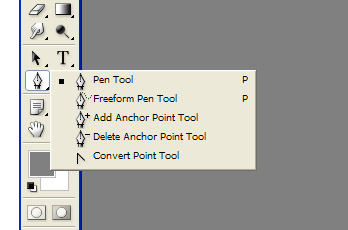
Pen Tool – Pen Tool is to draw Paths by clicking and dragging on the image.
Pen Tool Path


Freeform Pen Tool – Freeform Pen Tool is to draw paths in freehand mode. No need to put points by clicking on image to draw paths. Just drag with this tool to draw paths. It’s like Lasso tool. Magnetic option on the top of the menu is selected and then the tool acts like Magnetic Lasso tool with paths instead of selection border.
Add Anchor Point Tool – To add Anchor points at the middle of the path. We can add anchor points anywhere on path. Just click on paths and don’t click on Anchor points.
Delete Anchor Point Tool – This tool is used to remove Anchor points on path. If we click on any Anchor point with this tool then that point will removed. We can remove entire path by clicking on all Anchor points.
Convert Point Tool – Converts smooth Anchor points to corner Anchor points without directional lines. It removes the directional lines or breaks the directional lines of Anchor point. By clicking and drawing on anchor point, a new directional line will create.
Add Anchor Point Tool – To add Anchor points at the middle of the path. We can add anchor points anywhere on path. Just click on paths and don’t click on Anchor points.
Delete Anchor Point Tool – This tool is used to remove Anchor points on path. If we click on any Anchor point with this tool then that point will removed. We can remove entire path by clicking on all Anchor points.
Convert Point Tool – Converts smooth Anchor points to corner Anchor points without directional lines. It removes the directional lines or breaks the directional lines of Anchor point. By clicking and drawing on anchor point, a new directional line will create.

Direct Selection Tool – This tool is used to select Paths, Anchor Points and Directional lines. With this tool the path shape can be changed or modified. Shortcut is ‘A’ key on keyboard.
Path Selection Tool – This tool is useful for select and move paths without changing paths shape from one position to another location or image. Shortcut is ‘A’ key on keyboard.
Note: In my next Post (Pen Tool - Part 3) I will explain how to use pen tool and how many options use pen tool paths.
For questions please comment.