Todays Greeting

Todays Greeting
Good Morning
Showing posts with label Pen Tool. Show all posts

Thursday, 9 May 2013

Pen Tool (Photoshop) – Part 3

Using Pen Tool for removing Background:
  1. Open (File -> Open or Ctrl+O on keyboard or Double click any ware on empty place of Photoshop) the image which you want to remove background.
  2. Duplicate it by right clicking on title bar of the image or use Image menu-> Duplicate option.
  3. Close the original image. Save the Duplicated image with desired name and keep it open to start work.
  4. Double click or Alt+Double click on Background layer in layers palette to convert Background layer into normal layer. It is useful to make the image with transparent background.
  5. Now select Pen tool on tool bar or press ‘P’ on keyboard to switch Pen tool.
  6. With Pen tool click the starting point on right side of the object and start placing smooth and corner points around the object and cover the background area. Bring the path to the starting point and click on starting point to close the path.
  7. To adjust any point with Pen tool, Ctrl+Click on path to select and visible anchor points of the path. If you click the path with Ctrl key on keyboard, the Pen tool converts into Direct Selection tool. So, we can adjust any anchor point (moving anchor points near to the edge of the object).
  8. If you want any corner anchor point to convert into smooth anchor point or smooth point to corner point press Alt key on keyboard and click on anchor point.
  9. After adjusting path nearer to objects border, press Ctrl+Enter to convert path into selection. If you want to inverse selection press Ctrl+I.
  10. Now delete the selected background.
  11. Create new layer behind object layer by Ctrl+Click on Create New layer button on bottom of the layers palette to check whether background deleted completely or not.
  12. Fill color in newly created layer by pressing Alt+Backspace or Ctrl+Backspace key on keyboard. Now we can see some small background parts remaining. To clean the image use Eraser tool.

Pen Tool (Photoshop) – Part 2

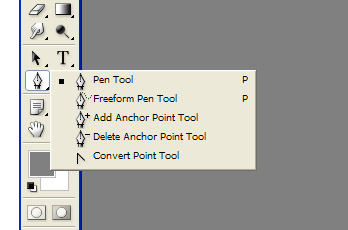
Pen Tool – Pen Tool is to draw Paths by clicking and dragging on the image.
                            

                             Pen Tool                                                                         Path


Freeform Pen Tool – Freeform Pen Tool is to draw paths in freehand mode. No need to put points by clicking on image to draw paths. Just drag with this tool to draw paths. It’s like Lasso tool. Magnetic option on the top of the menu is selected and then the tool acts like Magnetic Lasso tool with paths instead of selection border.

Add Anchor Point Tool – To add Anchor points at the middle of the path. We can add anchor points anywhere on path. Just click on paths and don’t click on Anchor points.

Delete Anchor Point Tool – This tool is used to remove Anchor points on path. If we click on any Anchor point with this tool then that point will removed. We can remove entire path by clicking on all Anchor points.

Convert Point Tool – Converts smooth Anchor points to corner Anchor points without directional lines. It removes the directional lines or breaks the directional lines of Anchor point. By clicking and drawing on anchor point, a new directional line will create.


Direct Selection Tool – This tool is used to select Paths, Anchor Points and Directional lines. With this tool the path shape can be changed or modified. Shortcut is ‘A’ key on keyboard.

Path Selection Tool – This tool is useful for select and move paths without changing paths shape from one position to another location or image. Shortcut is ‘A’ key on keyboard.

Note: In my next Post (Pen Tool - Part 3) I will explain how to use pen tool and how many options use pen tool paths.

For questions please comment.

Wednesday, 8 May 2013

Pen Tool (Photoshop) - Part 1

PEN TOOL 


Pen Tool is one of the important tools in Photoshop and located in Toolbar. The shortcut of Pen tool is ‘P’ key on keyboard. Lines drawn by Pen tool are called Paths. Each path has Anchor points. Each Anchor point has Directional lines. A Path can have any number of Anchor points and the minimum points are two (starting point and ending point). Paths can be converted into selection by pressing Ctrl+Enter key on keyboard. Vector Mask also requires Pen tool paths. When Pen tool is selected there are two options on top of the menu and those are Shape Layer and Paths. If shape layer is selected while drawing paths with Pen tool, Paths will be drawn with paths and foreground color fill. If Paths option is selected then only paths will draw. To define custom shapes (creating new shapes), the shape must be in paths mode. If path is available on image then Define Custom Shape option in Edit menu will appear and we can change into shapes.

To draw Paths with Pen tool there are five types of Pen tools. Those are Pen Tool, Freeform Pen Tool, Add Anchor Point Tool, Delete Anchor Point Tool and Convert Point Tool. There are other two tools are there on tool bar called Path Selection Tool and Direct Selection Tool for controlling Pen tool paths.

Note: I will continue in my next post five types of Pen tool and how to draw paths with Pen tool.

If any questions please ask me by mail or comment.

Popular Posts